SyncHub will provide you with your own dedicated SQL Azure database, if required. This is protected with a secure login, available only to you. For most, this level of security is sufficient, however we also offer IP-whitelisting via your database firewall.
> Are you using _your own_ database? You may find [our BYOD article](/connectors/vtigercrm/knowledge-base/byod) more useful (particularly the part about whitelisting our external IP address)
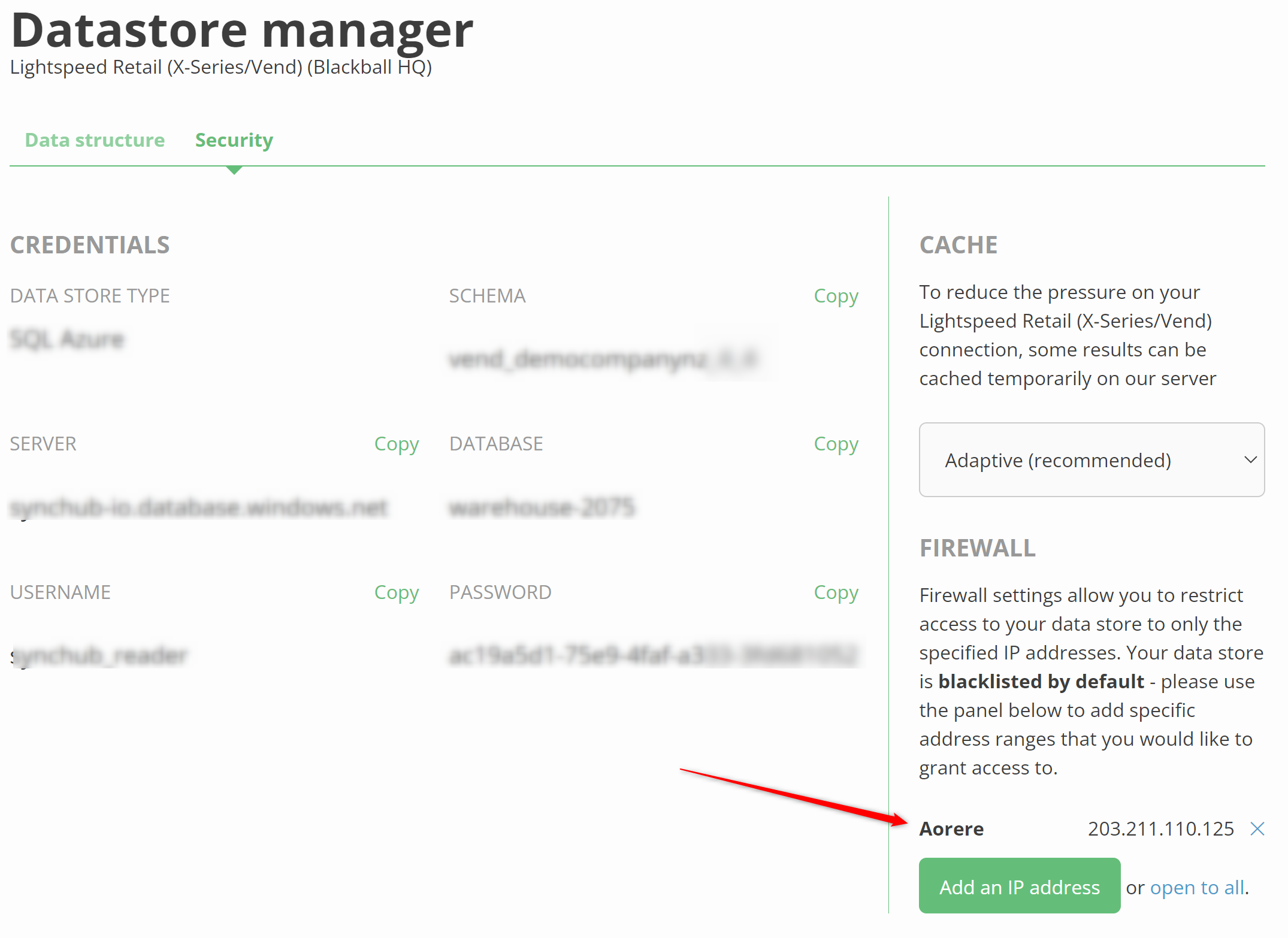
To configure, simply open your [Datastore Manager](/connectors/vtigercrm/knowledge-base/datastoremanagement), then switch to the Security settings:
### White-listing IP addresses
To allow only certain addresses, simply begin adding them via our editor. You can add a single address, or an IP range.
If you have a single IP address registered, then **all other IP addresses are blacklisted by default**.
### Allowing unrestricted access
> **Note:** This is a valid use case, but we don't recommend granting full access unless you absolutely need to
If you have a dynamic IP, or some other scenario where your IP is not predictable, then you can simply remove all IP addresses. SyncHub will assume access is granted for all IP addresses.
### How do you find your own IP address?
If you are unsure what your IP address is, it is easy to find out using a 3rd-party service like [https://whatismyip.com](https://whatismyip.com) or [https://whatismyipaddress.com](https://whatismyipaddress.com). Make sure you copy the **IP4** address (not the IP6 address) back to your Datastore Manager.
> **Remember though:** This will show you the IP address of _the computer you are currently using_, but this isn't necessarily the computer that is _accessing your data_. For example, if you are using a cloud-hosted reporting tool then you will need the IP address of _their_ servers, not your own computer.
### Troubleshooting
A common error when connecting to our data store is something along the lines of _"cannot open server synchub-io requested by the login. Client with IP address xxx.xxx.xxx.xxx is not allowed to access the server"_
Assuming you have no actual firewall restrictions above, the most likely cause of this is that you are not entering your _database_ name as part of your connection. Without this, your reporting tool will try to connect directly to our _server_, which is of course disallowed. To rectify, please make sure you enter the _database_name as part of your connection - this can sometimes be in advanced options within your reporting tool.
Or check out these blog articles...