Ever been in Slack and needed the latest report from Teamwork? What about a simple breakdown of your Task data? SYNCHUB makes this possible with our new Teamwork connector for Slack. In this post I'll show how you're just a few mouse-clicks away from conversing directly with your Teamwork data from directly within Slack.
Connecting your Teamwork account
To get started, just connect your Teamwork data to your SYNCHUB data warehouse - you may use your own database, or we will provide one to you for free.
Connect Slack
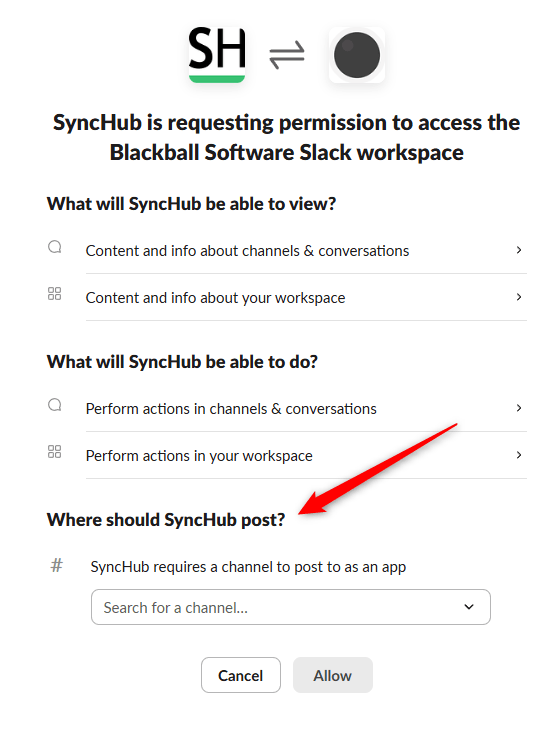
Once your data is downloading, you need to authorize your Slack account to read from it. Visit your User menu within SYNCHUB, select the Slack Settings, then follow the instructions to connect.
Our integration supports two use cases for Slack:
- A chatbot, letting you converse directly with your Teamwork data; and
- A notification channel for messages from SYNCHUB
When you connect, you'll be asked to provide the channel - I'll show you later how this is used.
Querying your Teamwork data from within Slack
After the authorization, you'll notice a new App available in Slack, which offers up a chat window with a direct line to your data:
Ever been in Slack and need the latest company financials? Project status? Last week's timesheets? SyncHub makes this possible. Connect the cloud services that drive your business (like Hubspot, Xero, monday.com and 70+ more) then converse directly with your data, without leaving Slack.
And now, it's just like the AI Assistant you know and love from SYNCHUB. Ask any questions you like and Slack will return the answer. Let's try a question by requesting our latest Task data:
Ever been in Slack and need the latest company financials? Project status? Last week's timesheets? SyncHub makes this possible. Connect the cloud services that drive your business (like Hubspot, Xero, monday.com and 70+ more) then converse directly with your data, without leaving Slack.
| CardID | Content | DueDate | EstimatedMinutes | Priority |
|---|---|---|---|---|
| 12 | Complete project plan | 2024-06-01 | 45 | High |
| 263 | Fix login bug | 2024-07-15 | 90 | Medium |
| 308 | Prepare sprint review presentation | 2024-08-10 | 120 | Low |
Receiving SYNCHUB notifications within Slack
SYNCHUB runs continuously in the background, monitoring your Teamwork data and syncing changes where necessary. On occasion, this means that we need to notify you - for example, if your data connection becomes unavailable. To enable these notifications in Slack, go back to your Slack Settings, and toggle the notification option:
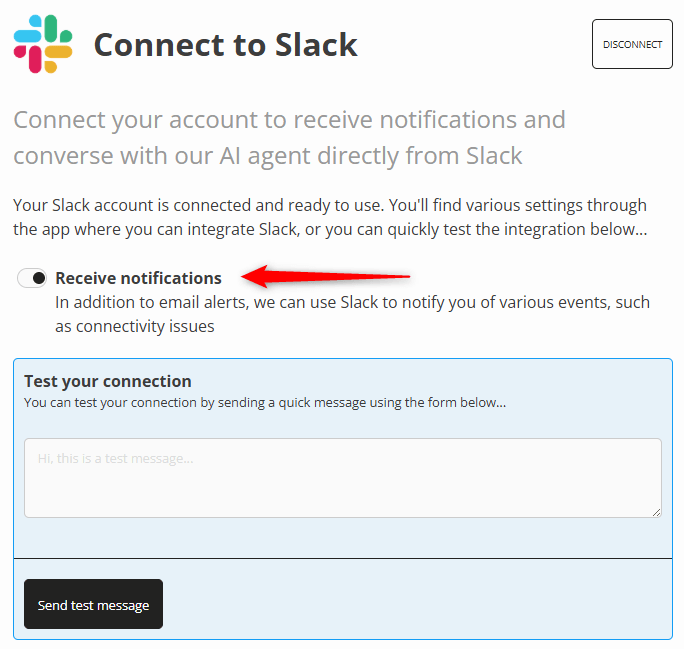
Now, any notifications that you would usually receive via email are also sent to the Slack channel you specified earlier:
SYNCHUB brings your Teamwork data to you. Not the other way around.
You're already dealing with dozens of open tabs and apps on your computer, so let SYNCHUB remove some of the complexity by bring your reporting and business data to the place your team hangs out all day - Slack.
Happy reporting, everybody.