Restricting IP access via your database firewall
Your data warehouse is protected with a secure login, available only to you. For most, this level of security is sufficient, however we also offer IP-whitelisting via your database firewall.
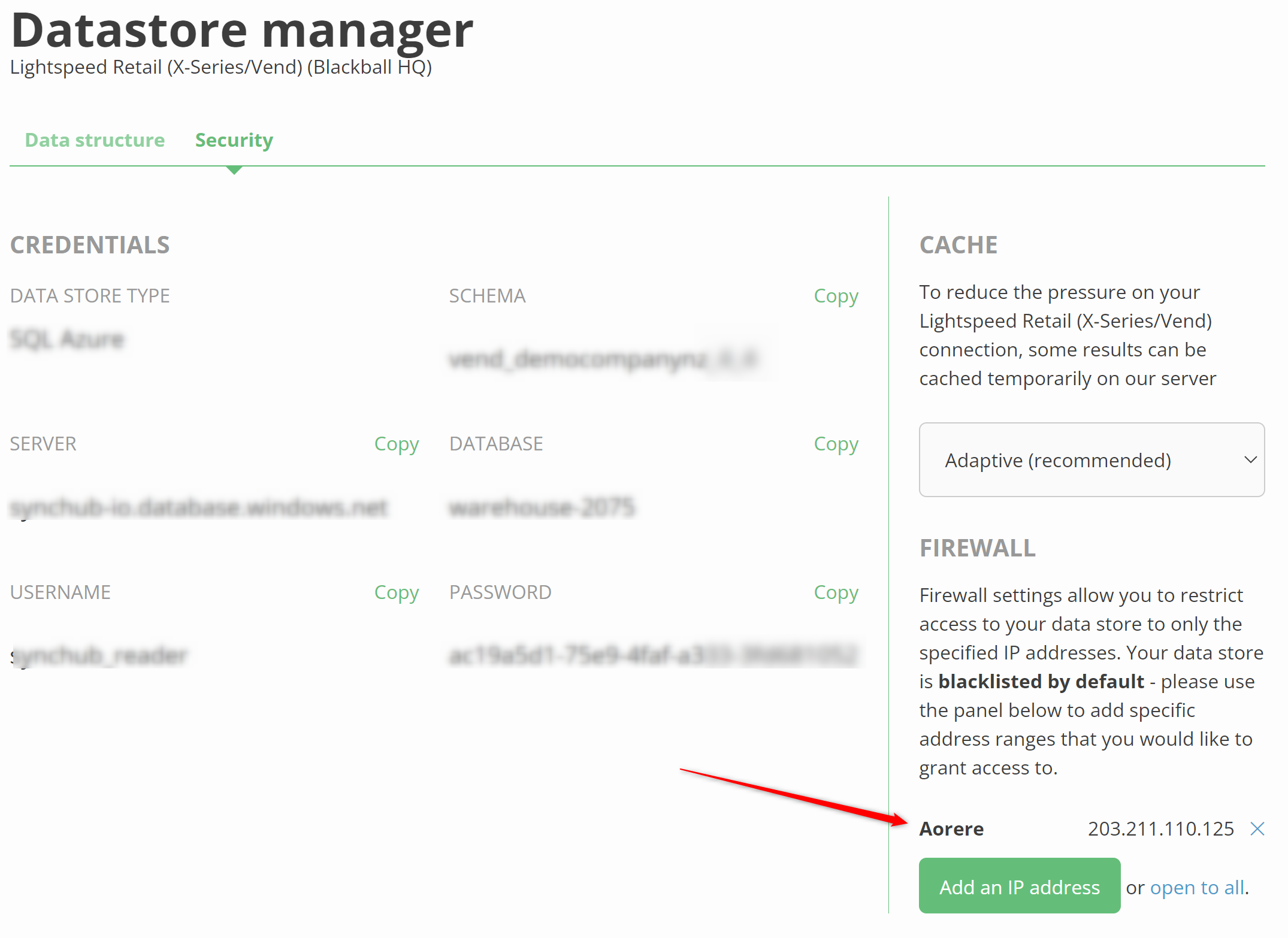
To configure, simply open your [Datastore Manager](/kb/datastoremanagement?api=agilecrm), then switch to the Security settings:
### White-listing IP addresses
To allow only certain addresses, simply begin adding them via our editor. You can add a single address, or an IP range.
If you have a single IP address registered, then **all other IP addresses are blacklisted by default**.
### Allowing unrestricted access
> **Note:** This is a valid use case, but we don't recommend granting full access unless you absolutely need to
If you have a dynamic IP, or some other scenario where your IP is not predictable, then you can simply remove all IP addresses. SyncHub will assume access is granted for all IP addresses.
### Troubleshooting
A common error when connecting to our data store is something along the lines of _"cannot open server synchub-io requested by the login. Client with IP address xxx.xxx.xxx.xxx is not allowed to access the server"_
Assuming you have no actual firewall restrictions above, the most likely cause of this is that you are not entering your _database_ name as part of your connection. Without this, your reporting tool will try to connect directly to our _server_, which is of course disallowed. To rectify, please make sure you enter the _database_name as part of your connection - this can sometimes be in advanced options within your reporting tool.